
Field Mapping and sync
Open Field Mapping (page title Map Shopify Fields to Dermaself). Here you tell the app where the composition and the other matching fields live in your Shopify products and metafields.
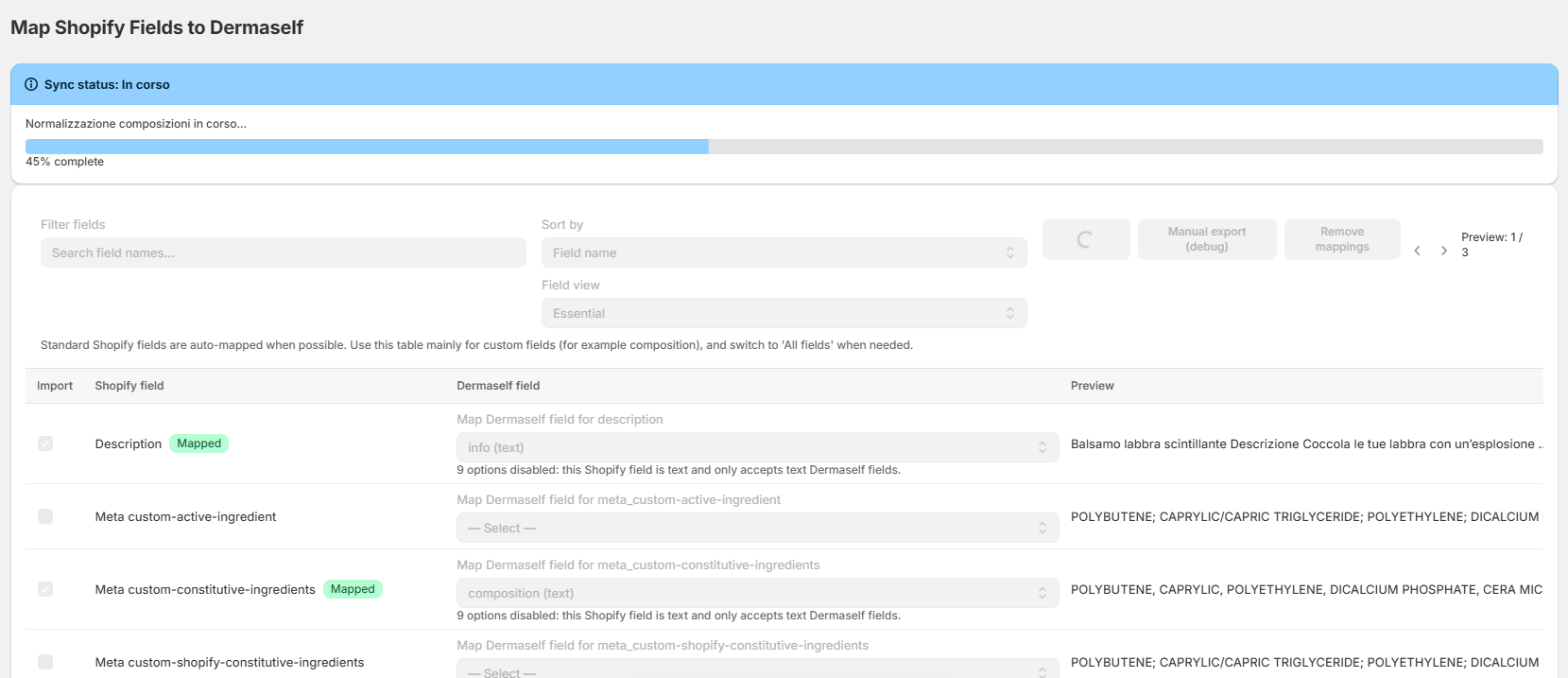
Steps
- Open Field Mapping.
- For each row, choose whether to Import the field.
- Connect the Shopify field (title, INCI metafield, description, …) to the Dermaself field.
- Check the Preview column: if it is empty, that field is not filled on the product.
- Check the fields with the Auto badge: they are suggestions and only apply when you save.
- Click Save mappings. The app saves the mapping and syncs every product that has a module.
The Sync status banner appears after the first save and goes from Queued to In progress, Almost done and Completed. The sync is finished when it shows Completed and Last sync with a date and time. If it shows Error, click Save mappings again. Click Refresh data to reload the page data.
There is no Sync button: to resync the whole catalog, click Save mappings again.
Use Filter fields, Sort by and Field view (Essential / All fields) to find a field quickly.
What to map first
- INCI / ingredients → composition — required for good matching. It is not suggested automatically.
- product_name, brand, ean, best_price — suggested automatically (Auto badge), but they must be saved.
- image_url — in Field view choose All fields and connect FeaturedImageUrl. It is not suggested automatically.
If the INCI is missing, or sits in a metafield you did not map, the product matches weakly or not at all.
When the catalog syncs again
- When you save in Product Category Mapping: the products you changed are queued.
- When you save here with Save mappings.
- When you create, edit or delete products in Shopify: the change is queued automatically.
Once the first sync is done, later changes are queued automatically. After a bulk INCI correction, or if you change the metafield that holds the INCI, open Field Mapping and click Save mappings again.
Next: Routines.