
Product Category Mapping
Open Product Category Mapping. Every product that should appear in the Skin Test needs one module (Cleansing, Serum, SPF, Night Cream, …). Without a module, the Skin Test cannot place the product in a routine step.
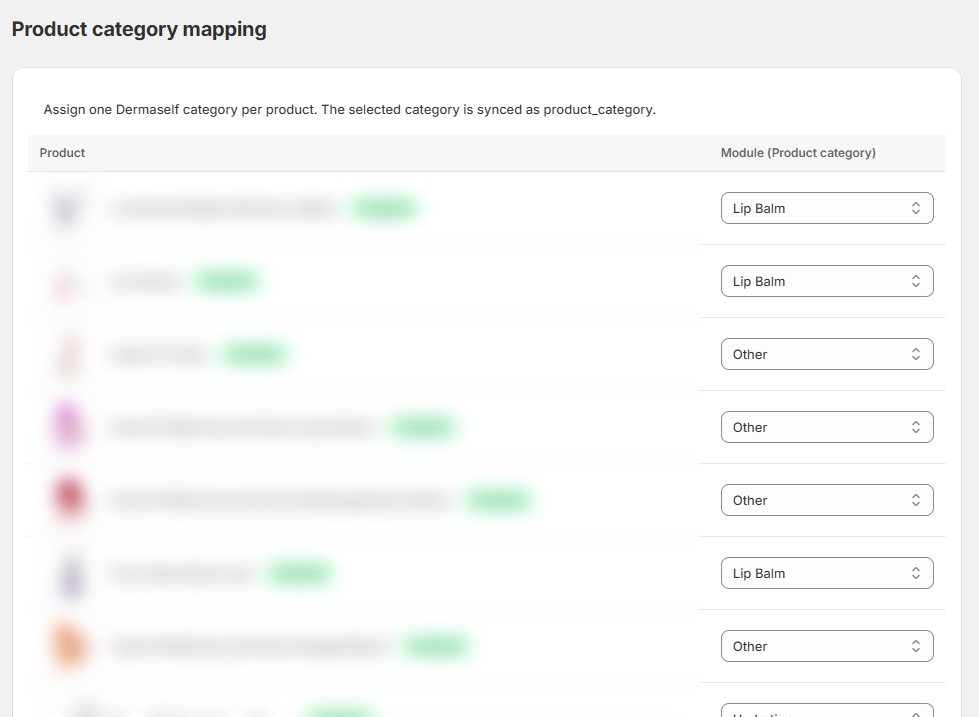
Steps
- Open Product Category Mapping.
- For each Product, pick the Module (Product category) from the dropdown.
- Click Save.
Saving queues the products you changed. On first setup the sync only starts after you save Field Mapping: until then the products stay queued, which is expected. The banner at the top shows the sync status and the last sync.
Products without a module stay in your Shopify catalog but are not recommended.
How many products you can map
| Plan | Mapped products |
|---|---|
| Free | 100 |
| Start | 100 |
| Pro | 200 |
| Enterprise | Unlimited |
If you go over the cap, saving fails with “Your plan allows up to N mapped products”. Unmap some products or change plan.
How to pick the module
Use what the product really does, not the marketing name:
- face cleanser → Cleansing
- treatment serum → Serum
- day / night cream → the matching Day / Night Cream module
- face SPF → SPF
A product can have only one module: pick the routine step where it should appear.
After mapping
Open Field Mapping, connect the INCI to composition and click Save mappings: without this step your mapped products are not synced. Then compose the routines in Routines.